
How Do You Factory Reset a Vizio TV: Step-by-Step Guide
Performing a factory reset on your Vizio TV is a practical solution to resolve persistent issues or prepare your device for a new user. This guide walks you through the necessary steps to restore your TV to its original settings without difficulty. Whether you’re dealing with software glitches or optimizing performance before passing on your TV, these steps will help you successfully manage the reset.
Introduction
Factory resetting a Vizio TV becomes essential when technical issues disrupt your viewing experience or when preparing to transfer ownership. This procedure addresses software problems, refreshes performance, and clears personal settings that might obstruct new configurations. You’ll find everything needed here for smooth execution, ensuring your TV functions at its best.
Understanding the Need for a Factory Reset
Factory resets can fix numerous common problems encountered with Vizio TVs. When your TV starts showing signs of malfunction, such as freezing, connectivity failures, or repeated glitches, a reset might be the comprehensive solution needed. This process erases all custom settings, providing a clean slate akin to when you first purchased the TV. Furthermore, if you’re giving away or selling the TV, a reset protects your data, rendering it a smart precautionary step.
Preparing for the Factory Reset
Thorough preparation ensures a smoother factory reset process and minimizes potential complications. Here are crucial steps you should take before initiating a reset:
- Backup Important Settings: Take note of your favored picture settings, sound profiles, and network configurations. This documentation allows you to reapply personalizations quickly after resetting.
- Check for Software Updates: Sometimes, a simple update can solve ongoing issues, eliminating the need for a reset. Visit the setup menu to confirm your TV is running the latest software version.
- Ensure Remote Control Functionality: Testing your remote control prior to starting guarantees seamless navigation through the reset procedures. Replace batteries if necessary, or use the TV’s manual buttons if the remote is malfunctioning.
Now that you’ve prepared, let’s transition to the actual reset steps, ensuring a flawless execution.
How to Factory Reset Your Vizio TV
Executing the reset depends on your situation and device model. Choose the most appropriate method from the following:
- Using the Remote Control:
- Press the ‘Menu’ button on your remote control.
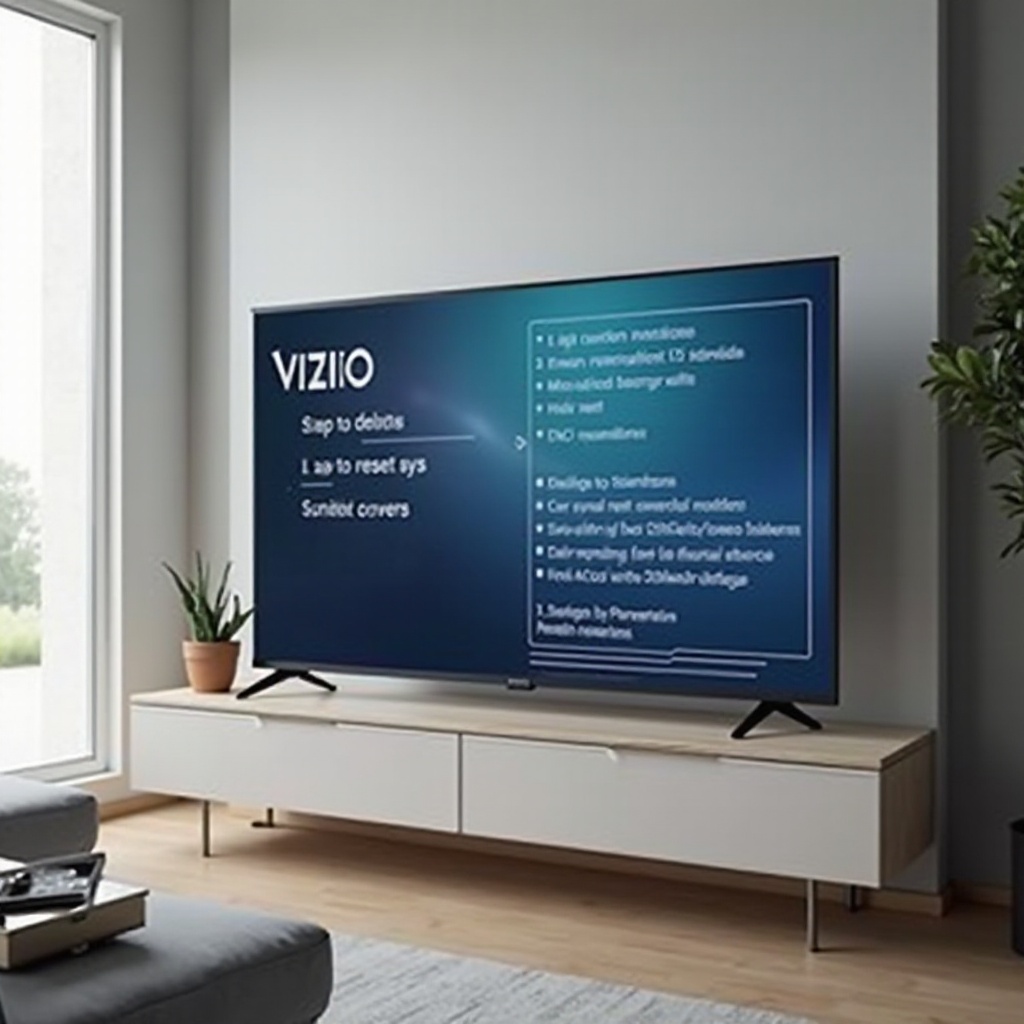
- Go to ‘System’ > ‘Reset & Admin’.
- Select ‘Reset TV to Factory Defaults’.
- Input your parental control passcode (default is often ‘0000’).
-
Confirm the reset.
-
Manual Reset on Older Models:
- Turn off the TV and unplug it from the power source.
- Press and hold the power button on the TV for 30 seconds.
- Plug the TV back in and power it on.
-
If the reset doesn’t initiate, navigate to ‘System’ settings via the menu for further assistance.
-
Resetting Without a Remote:
- Find the power button on the TV’s frame.
- Hold it down until the TV resets to default settings.
- Check your user manual for any model-specific instructions.
With your Vizio TV reset, you’ll need to reconfigure it to your preferences once again.
Post-Reset Configuration and Setup
After resetting, your TV is essentially a blank slate waiting for personalization. Take advantage of this opportunity to optimize settings for optimal viewing:
- Reconfiguring Settings: Start the setup assistant, adjusting language, audio, and display settings to your liking. Connect the TV to your home Wi-Fi network and reinstall apps as necessary.
- Personalizing Your Vizio TV: Reboot your personal settings, including audio and visual preferences. Plug in external devices like gaming systems to ensure their compatibility and performance.
Completed the configuration? Your TV should be back in robust working order, ready for any home entertainment demands.
Troubleshooting Common Reset Issues
Should you face challenges during the reset process, a few remedial actions will aid resolution.
-
Reset Not Working: Verify that all cables are secured, and the power source is stable. Persisting issues may require additional investigation through Vizio’s support resources.
-
Error Recovery Tips: Persistent issues not resolved by resetting might need expert insight. Vizio’s technical support or authorized service centers can provide further assistance.
Having journeyed through these steps, you’re now equipped to handle any reset endeavors, ensuring full recovery and performance optimization.
Conclusion
In conclusion, factory resetting your Vizio TV rejuvenates its functionality, providing solutions to technical complications and protecting personal data for new users. With this guide, you’ll confidently navigate the reset process, transforming your TV into its optimal state efficiently.
Frequently Asked Questions
What if my reset doesn’t solve the problem?
If issues persist post-reset, verify your connections and consider seeking assistance from Vizio support or professional repair services.
Can I perform a factory reset without a remote?
Yes, many models allow resetting using on-board controls. Refer to the user manual for precise steps.
How often should I reset my Vizio TV?
Reset your TV only when necessary, such as before transferring ownership or resolving technical problems.