How to Ping Your iPhone from Your Apple Watch
Introduction
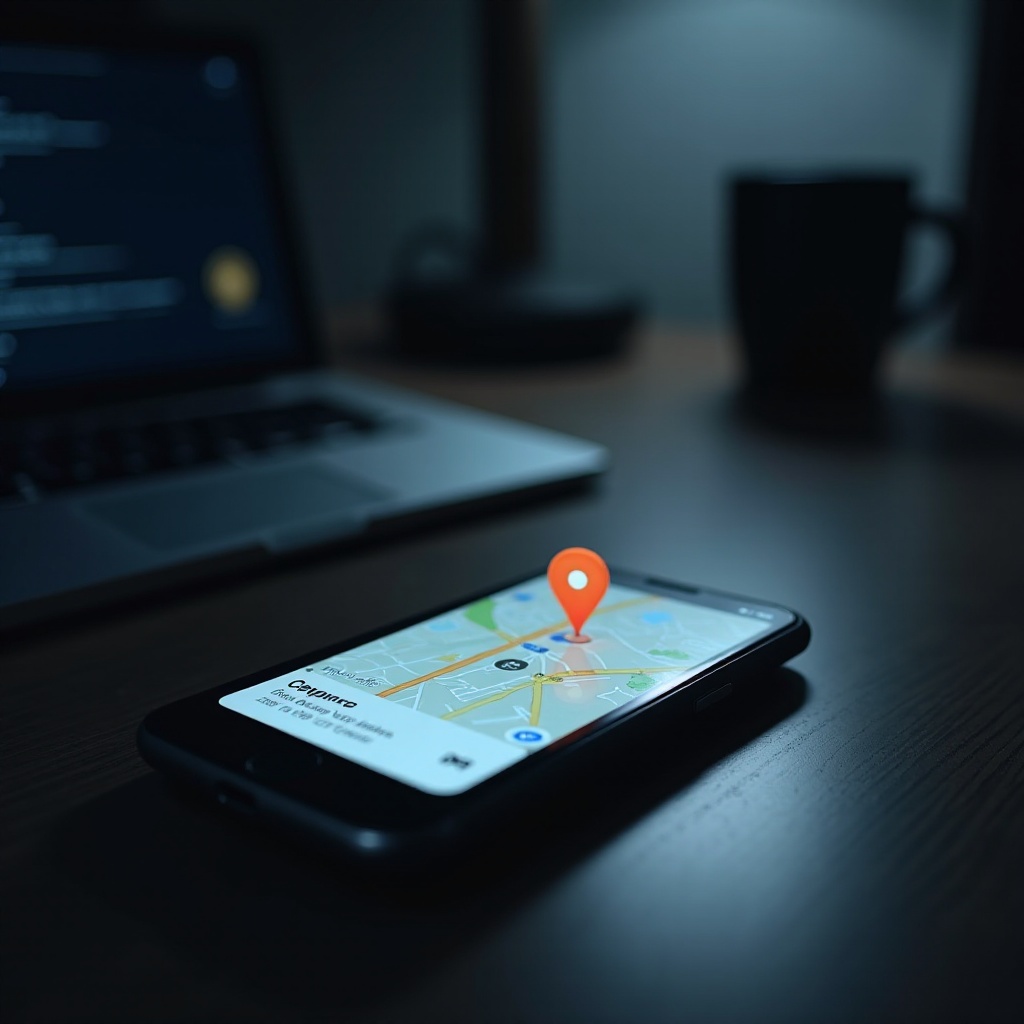
Finding a misplaced iPhone can be a considerable hassle. Fortunately, if you own an Apple Watch, you can use it to locate your iPhone swiftly. This feature is a testament to Apple’s seamless device integration, crafted to enhance user convenience. By understanding this process, you not only solve the immediate problem of a lost phone but also explore deeper connectivity advantages within the Apple ecosystem.
Understanding the Integration between Apple Watch and iPhone
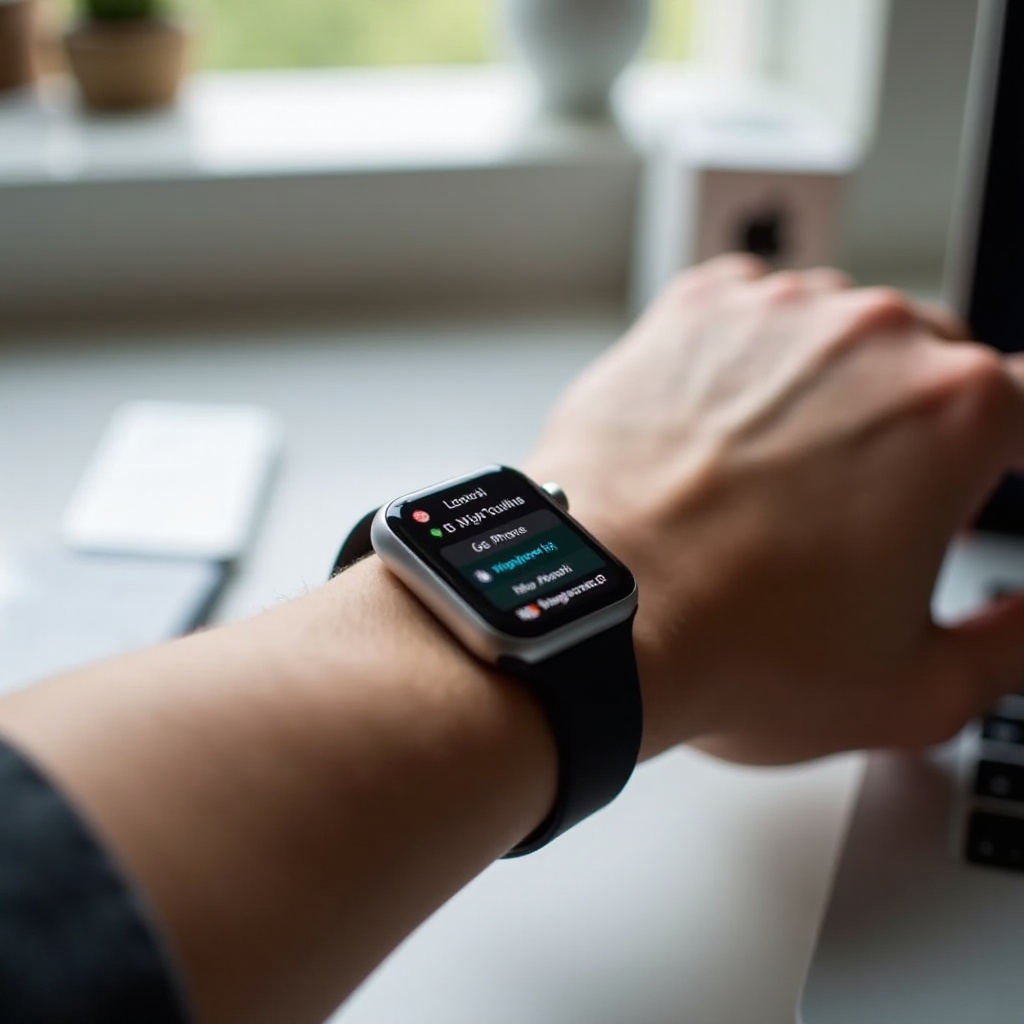
Your Apple Watch and iPhone are designed to work in harmony. This connectivity allows you to manage calls, messages, and more, directly from your wrist. Such integration is vital, ensuring that each device complements the other in functionality. When you learn to utilize this synergy, you unlock features that simplify and enrich your daily life.
Importantly, staying synchronized means your data is consistent and accessible across devices. This synchronization streamlines tasks and reduces unnecessary stress, making every function—from tracking fitness to pinging your iPhone—effortless and quick.
Step-by-Step Guide on Pinging Your iPhone
Pinging your iPhone using your Apple Watch is straightforward and can be initiated with minimal effort. This feature is part of a suite of tools designed to keep you organized and connected.
- Ensure your Apple Watch and iPhone are running the latest software versions to maximize compatibility and feature availability.
- Confirm that both devices are either connected to the same Wi-Fi network or within Bluetooth range.
- Access the Control Center on your Apple Watch by swiping up on the watch face.
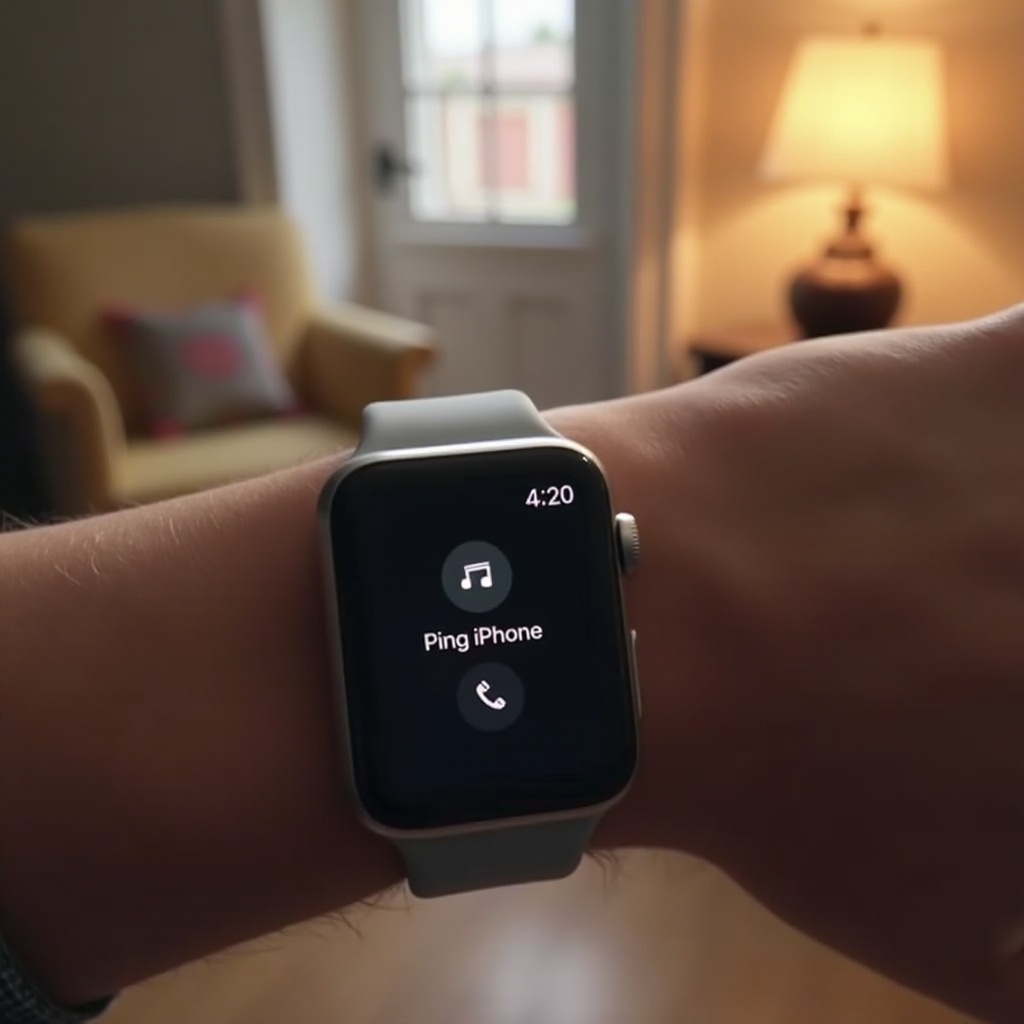
- Look for the ‘iPhone with waves’ icon and tap it once. Your iPhone will emit a pinging sound, making it easy to locate.
This feature works even if your iPhone is on silent mode, ensuring you can always find your device when needed.
Maximizing Your Apple Watch Features Beyond Pinging
Beyond just locating your iPhone, your Apple Watch offers a myriad of features that contribute significantly to personal efficiency and health management.
The combination of fitness tracking, notifications, and Siri voice commands transforms how you handle day-to-day tasks. With fitness tracking, you can monitor your activity levels, set workout goals, and even compete with friends. Notifications and alerts ensure you remain informed of messages and calls without needing to constantly check your iPhone.
Utilizing Siri on your Apple Watch further enhances productivity, allowing you to perform tasks hands-free. Whether it’s setting reminders or dictating notes, Siri’s assistance can significantly streamline your workflow.
Troubleshooting Common Connectivity Issues
There may be instances where pinging your iPhone from your Watch is unsuccessful. Addressing these issues ensures continuous connectivity and functionality.
First, verify both devices are within range and airplane mode is not enabled. If the ping is still not functioning, restart both your Apple Watch and iPhone. This often resolves minor glitches that cause connectivity failures. Ensure Bluetooth is turned on and each device is paired correctly. Updating the software can also rectify known system bugs.
For persistent issues, consulting Apple Support provides guidance tailored to your specific situation and device setup.
Conclusion
Pinging your iPhone from your Apple Watch exemplifies the seamless integration Apple offers its users. Not only does this feature simplify life’s little hassles, but it also underscores the potential when leveraging the full suite of capabilities across Apple’s ecosystem. Taking the time to understand these functions not only aids in immediate tasks but also prepares you to fully embrace the technological synergy at your fingertips.
Frequently Asked Questions
Can I ping my iPhone if it is on silent mode with my Apple Watch?
Yes, the ping feature functions even if your iPhone is in silent mode, ensuring you can locate it easily.
Why is the ping feature not working on my Apple Watch?
Ensure both devices are updated, within Bluetooth range, and not in airplane mode. Restart both to resolve potential glitches.
How do I ensure my Apple Watch and iPhone stay connected?
Keep both Bluetooth and Wi-Fi enabled, maintain close proximity between devices, and regularly update the software to ensure stable connectivity.