
How to Pair Beats Studio Wireless Headphones: A Comprehensive Guide
Introduction
Beats Studio Wireless headphones combine superior sound quality with a stylish design. Whether you’re into music, podcasts, or any other audio content, connecting these headphones properly can significantly enhance your listening experience. This comprehensive guide will take you through the pairing process, offer solutions to common issues, and provide tips to maintain an optimal connection.
Understanding Beats Studio Wireless Headphones
Before jumping into the pairing procedure, it’s important to grasp the standout features of Beats Studio Wireless headphones.
-
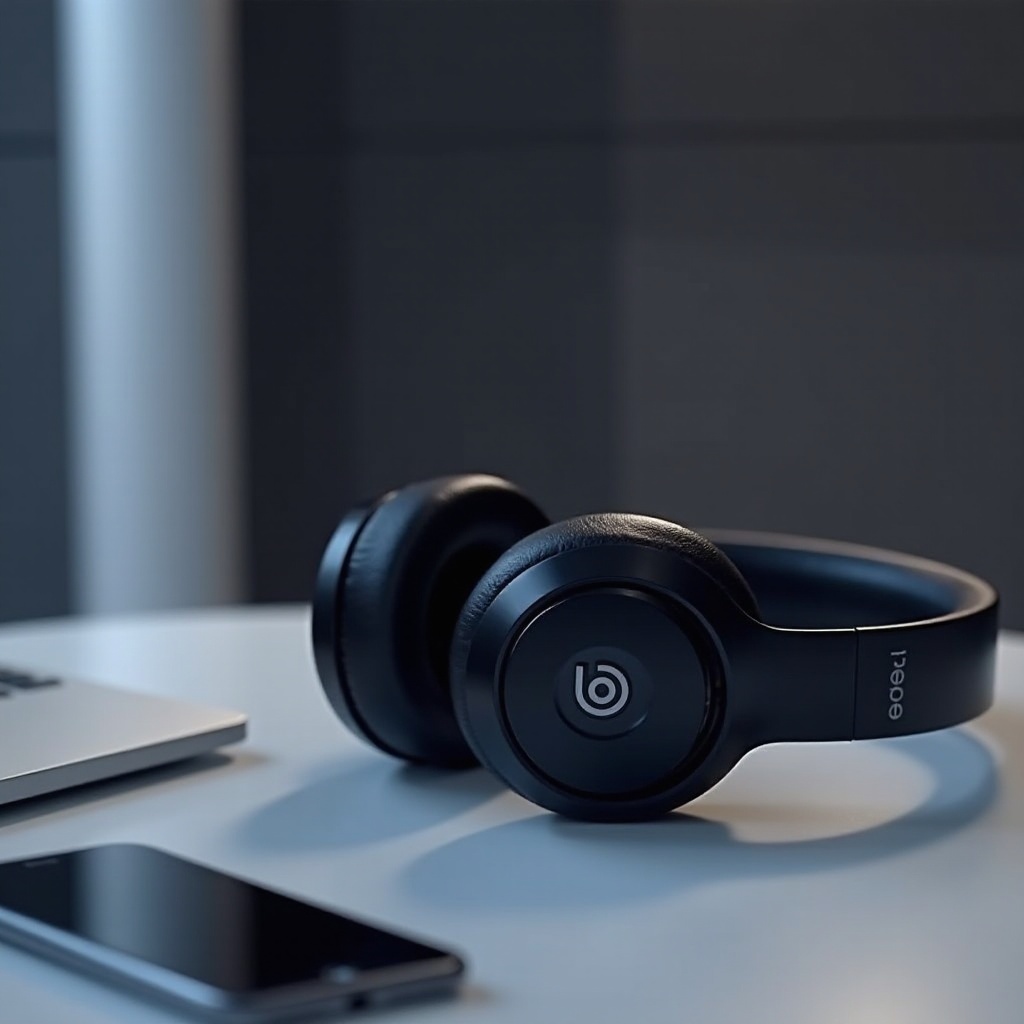
Key Features of Beats Studio Wireless: These headphones feature cutting-edge noise-cancellation, a comfortable over-ear fit, and high-fidelity audio. They are compatible with a wide range of devices, boasting advanced Bluetooth technology.
-
Bluetooth Capabilities and Specifications: Operating on Bluetooth 5.0, these headphones ensure a strong and stable connection, allowing you to pair them with multiple devices effortlessly. They feature a long-range connectivity option, enabling mobility without dropping the connection.
Knowing these features will enable you to maximize the usage of your headphones and smoothly transition into the pairing steps.
Preparing Your Beats Studio Wireless for Pairing
Proper preparation of your headphones is crucial for seamless pairing. Follow these steps to get your Beats Studio Wireless headphones ready:
-
Charging Your Headphones: Confirm that your headphones are fully charged. Use the included USB cable for charging. A full battery ensures a continuous pairing experience.
-
Understanding LED Indicators: Familiarize yourself with the LED indicators. A flashing light means your headphones are in pairing mode, while a steady light indicates they are on standby or already paired.
Once your headphones are prepped, proceed to connect them with your devices.
Step-by-Step Pairing Guide for Different Devices
Pairing your Beats Studio Wireless headphones with various devices is straightforward. Here’s how to do it for different platforms:
- Pairing with iOS Devices:
- Ensure Bluetooth is enabled on your iOS device: Go to Settings > Bluetooth and toggle it on.
- Turn on your Beats headphones and place them near your iOS device.
-
Your headphones should appear in the list of available devices. Tap on them to establish a connection.
-
Pairing with Android Devices:
- Open ‘Settings’, then tap on ‘Connections’ followed by ‘Bluetooth.
- Activate Bluetooth and make it discoverable.
-
Power on your headphones, and they’ll appear in the list. Tap to pair.
-
Pairing with Windows Computers:
- Click the Bluetooth icon in the taskbar.
- Select ‘Add a Bluetooth Device.
-
Turn on your headphones, and they will appear in the list. Click to connect.
-
Pairing with macOS:
- Click the Apple menu > System Preferences > Bluetooth.
- Power on your headphones, which should appear in the list. Click ‘Connect.
Different devices have varied pairing steps, but these guidelines ensure easy connectivity.
Troubleshooting Common Pairing Issues
Sometimes, despite following the steps, issues may arise. Here are solutions for common pairing problems:
-
Resolving Connectivity Issues: If your headphones don’t appear, try toggling Bluetooth off and on. Restart both devices to refresh the connection.
-
Resetting Your Headphones: Persisting issues may require a reset. Press and hold the power button and volume down button simultaneously for 10 seconds.
-
Addressing Signal Dropouts: Eliminate physical obstructions and stay clear of devices causing wireless interference such as routers.
By employing these tips, most pairing problems can be resolved swiftly.
Enhancing Your Connection Quality
For exceptional audio experiences, consider these tips to maintain a strong connection:
-
Optimal Distance and Conditions: Stay within 30 feet of your device for optimal reception. Ensure there are no obstructions blocking the signal.
-
Avoiding Bluetooth Interference: Steer clear of devices that emit strong electromagnetic signals. Keep your headphone firmware updated to prevent glitches.
Maintaining a strong connection ensures an uninterrupted auditory experience, allowing you to savor every audio detail.
Maintaining Your Beats Studio Wireless
Proper care prolongs the lifespan of your headphones. Follow these maintenance tips:
-
Cleaning and Care Tips: Gently clean your headphones with a soft, dry cloth. Avoid using liquids or abrasive materials that could damage them.
-
Storage Practices for Longevity: Store your headphones in a cool, dry environment. Utilize the provided case for protection when not in use.
These maintenance practices keep your headphones in optimal condition for long-term use.
Conclusion
Pairing Beats Studio Wireless headphones is a straightforward task with the right guidance. With a firm understanding of their features, careful preparation, and adherence to step-by-step instructions, you’re guaranteed an excellent audio experience. Utilize troubleshooting tips when challenges arise and maintain your headphones for lasting performance.
Frequently Asked Questions
Why won’t my Beats Studio Wireless pair with my device?
Ensure both devices are in pairing mode and Bluetooth is activated. Restart both the device and headphones if necessary.
How can I improve the sound quality of my Beats Studio Wireless?
Ensure a good fit, and that the headphones are charged. Also, adjust audio settings on your device for optimal sound.
Can I connect my Beats Studio Wireless to more than one device at a time?
Yes, they support multi-device pairing, but only one can be used at a time. Disconnect and reconnect when switching devices.
