How to Change the Backlight on Your Samsung TV for Optimal Viewing
Introduction
Changing your Samsung TV’s backlight settings can greatly enhance your overall viewing pleasure. With the right adjustments, you can achieve perfect picture quality and improved energy efficiency. Whether watching a movie in a dark room or catching up on shows in a sunlit living room, optimizing the backlight ensures a superior viewing experience.
Understanding Samsung TV Backlight Settings
Before you start adjusting, it is important to understand what backlight settings do. On Samsung TVs, the backlight controls the panel’s illumination. This affects the screen’s overall brightness, as opposed to the brightness setting that tweaks the light intensity of the images displayed. Knowing this difference enables you to adjust settings that contribute not only to better quality viewing but also to possible reductions in energy consumption.
Recognizing the difference between backlight and brightness is key to making appropriate modifications. Once you understand how each setting impacts your display, you’re ready to begin adjusting those settings for your unique environment.
Steps to Change Backlight Settings on a Samsung TV
Adjusting backlight settings on a Samsung TV is straightforward with a few simple steps:
- Access the Settings Menu:
- Turn on your Samsung TV and press the ‘Menu’ button on your remote control.
-
Navigate using the arrow keys until you reach ‘Picture’ settings.
-
Manually Adjust Backlight Levels:
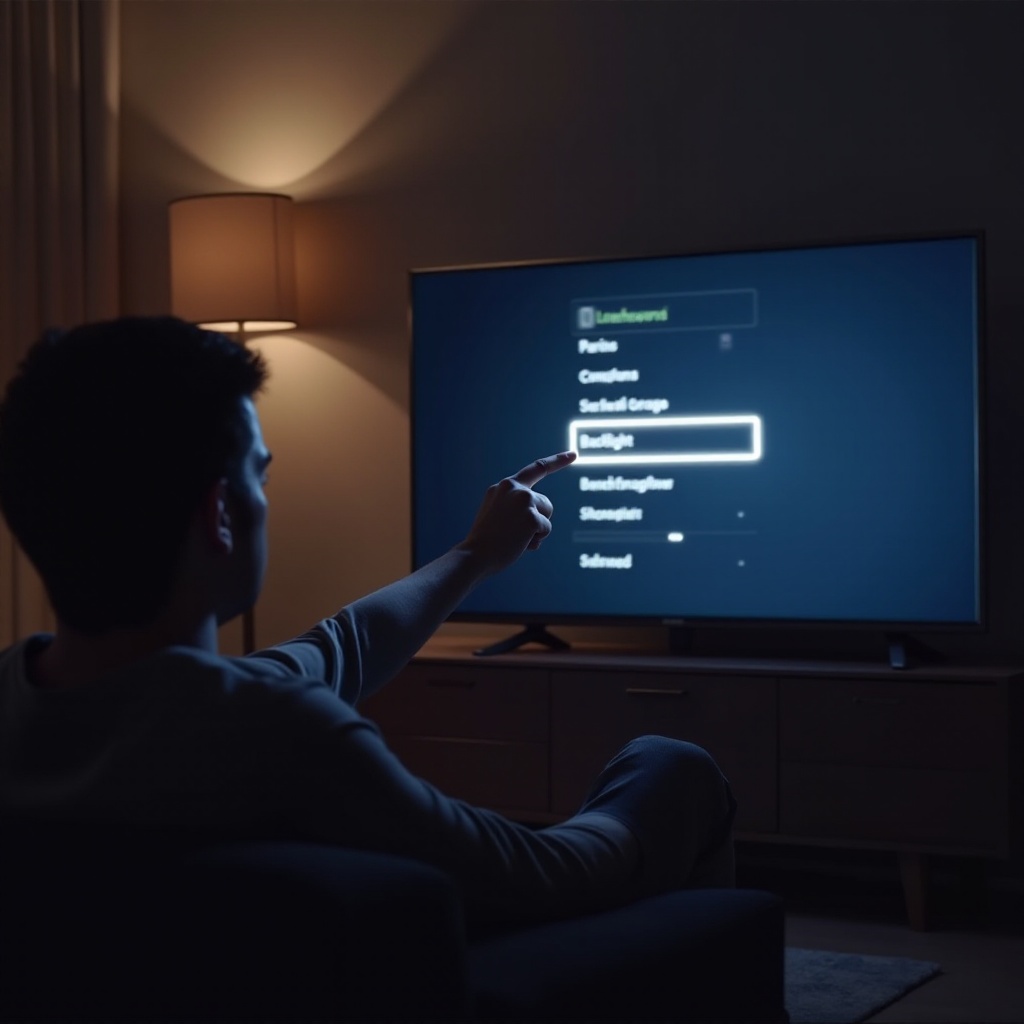
- Select ‘Backlight’ under the Picture settings menu.
-
Use the left and right arrows to increase or decrease the backlight until it suits your environmental conditions.
-
Use Preset Modes for Convenience:
- Samsung TVs come with preset picture modes like Dynamic, Standard, and Movie.
- Test each mode, as they are pre-configured to optimize settings for different scenarios. Dynamic is great for bright rooms, while Movie is ideal for low-light settings.
Once you know how to manually adjust your settings, you can explore Samsung’s intelligent features designed to simplify this process.
Utilizing Advanced Features for Automatic Backlight Adjustment
Samsung offers advanced features like Eco Sensor and Intelligent Mode to enhance user experience by automatically adjusting settings based on ambient conditions.
- Eco Sensor:
-
Enable this feature by going to ‘Settings’ > ‘Eco Solution’ and toggle ‘Eco Sensor’ on. It adjusts the backlight automatically, saving energy and optimizing viewing comfort.
-
Intelligent Mode:
- In the settings, enable ‘Intelligent Mode’, which dynamically adjusts picture settings according to your TV’s surroundings and viewing content. Although convenient, it should be monitored, as personal preference may sometimes necessitate manual intervention.
With these automated features, you can often eliminate the need for constant manual adjustments. However, should issues arise, proceed to troubleshooting.
Troubleshooting Common Backlight Issues
Even with advanced settings, you might encounter problems. Here’s how to tackle them:
- TV Appearing Too Dark or Bright:
- Double-check Eco Sensor and Intelligent Mode configurations.
-
Reassess manual adjustments for more tailored settings.
-
Flickering or Inconsistent Brightness:
- Update your TV’s firmware to ensure you have the latest enhancements and fixes.
- If issues persist, consider a factory reset of the picture settings, but remember that this will erase any personalized calibrations.
Successfully troubleshooting these issues underpins the importance of keeping your settings optimized for the best display performance.
Tips for Optimal Backlight Performance
To maintain optimal performance, consider these tips:
- In low-light environments, use softer backlight settings to prevent eyestrain.
- Brighter settings work better for illuminated rooms, enhancing screen clarity.
- Regular updates to the TV’s firmware ensure you’re benefiting from the latest improvements.
- Clean your TV screen to keep the picture clear and free from distortions caused by dust or smudges.
By following these practices, you’ll ensure that your Samsung TV provides a consistently excellent picture quality tailored to your home environment.
Conclusion
Adjusting the backlight on your Samsung TV is an effective strategy to improve your viewing experience. Through both manual and advanced automated adjustments, achieving the ideal settings specific to your daily conditions can be simple and rewarding. With minor tweaks, your television can deliver superior image satisfaction and potentially reduce energy usage.
Frequently Asked Questions
Can I adjust the backlight on all Samsung TV models?
Yes, most Samsung TVs allow backlight adjustments, though the navigation might differ slightly between models.
What’s the difference between backlight and brightness on my TV?
Backlight adjusts the screen’s illumination setting, whereas brightness controls the light intensity of the actual images.
How often should I adjust my Samsung TV’s backlight settings?
It’s best to adjust settings whenever there is a significant change in ambient lighting or if you notice discomfort in viewing.