Locating HDMI Ports on Your LG TV: The Ultimate Guide
Introduction
Getting the most out of your LG TV often begins with a simple task: identifying the location of its HDMI ports. These ports play a crucial role in connecting devices like gaming consoles, sound systems, and streaming equipment, ensuring you get optimal video and audio quality. By knowing where the HDMI ports are, setting up and enjoying your television becomes much easier. In this guide, we’ll explore the steps to find HDMI ports across various LG TV models, the importance of these connections, and tips for maximizing their use.
Understanding HDMI Ports and Their Importance
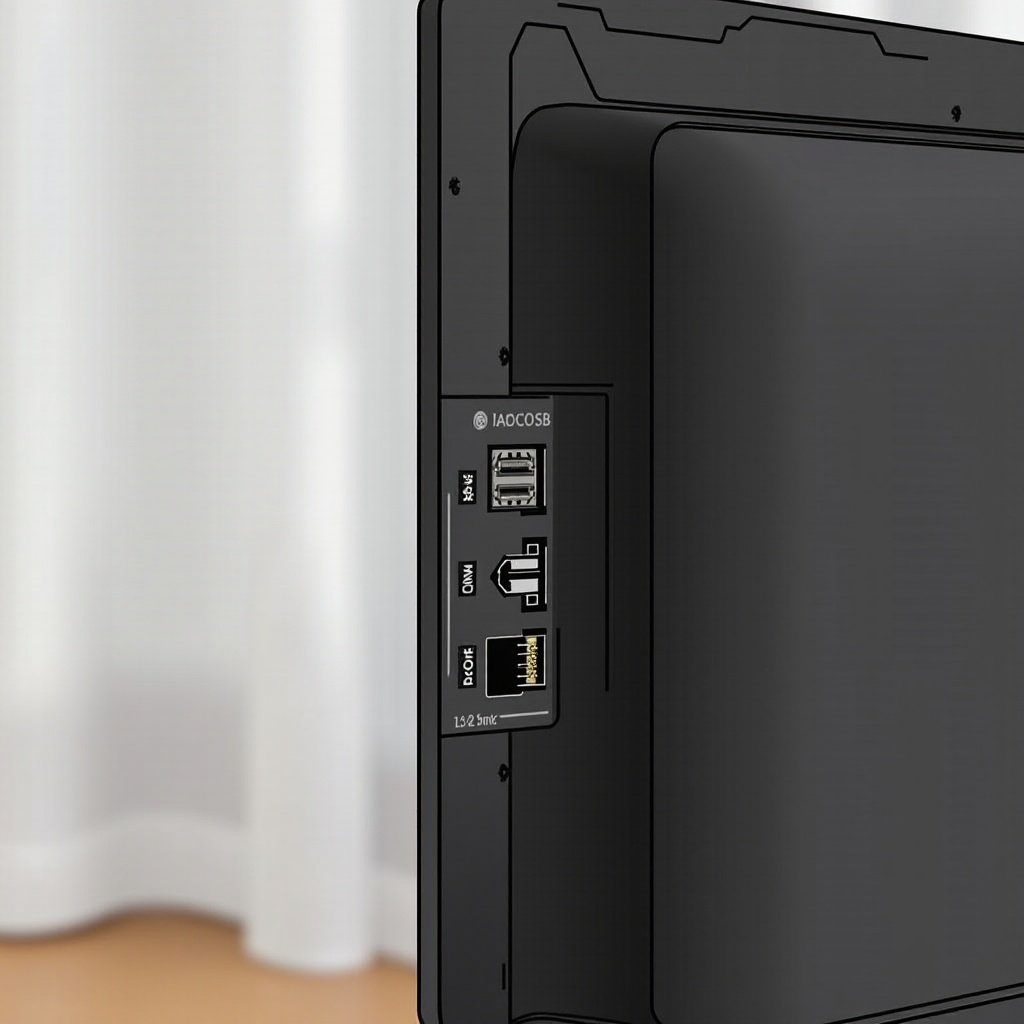
To truly leverage the capabilities of your LG TV, it’s essential to understand HDMI ports and their pivotal role. HDMI (High Definition Multimedia Interface) ports are designed to transfer high-definition video and audio signals seamlessly between devices using a single cable. This simplicity allows for a more organized entertainment setup, reducing clutter by replacing multiple cables with just one.
The advantage of using HDMI lies in its ability to deliver unparalleled video and audio quality, which is why it remains a standard for media connectivity. Equipped with HDMI ports, your LG TV can easily connect to various peripherals, enhancing your overall viewing experiences, such as improved graphics while gaming or crisp audio during movie nights.
Overview of LG TV Models and HDMI Port Configurations
As LG offers diverse television models, each comes with unique HDMI port configurations tailored to different consumer needs.
-
Various LG Series and Design Innovations: From the sleek aesthetics of the OLED series to the technically advanced NanoCell lineup, each model may offer a different set of features. Typically, newer models feature HDMI 2.1 ports capable of supporting higher refresh rates, especially beneficial for gamers.
-
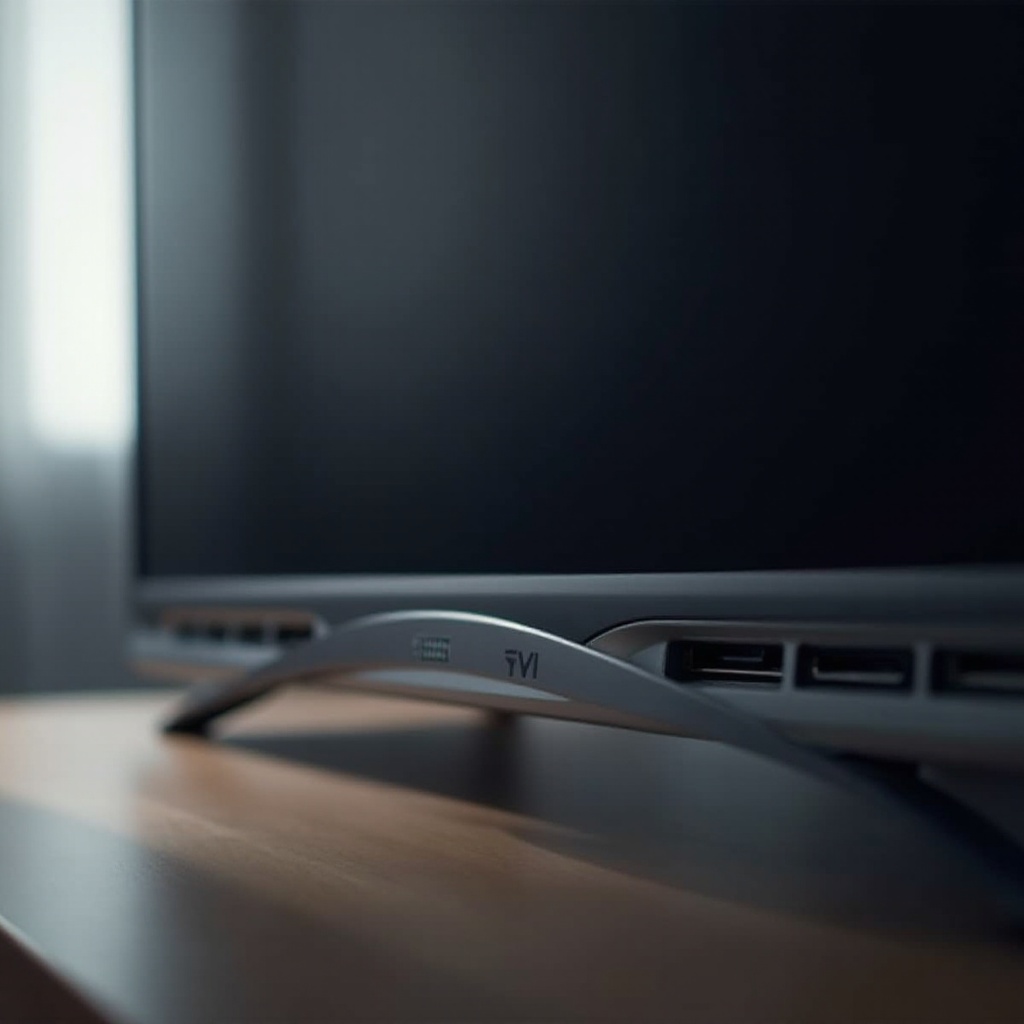
Common HDMI Port Locations: LG models usually place HDMI ports on the back panel for an all-in-one connection hub, but many also offer side ports for easy access. This arrangement reflects their commitment to user-friendly design.
By understanding these configurations, you can quickly locate and utilize the HDMI ports on your specific LG TV model, ensuring efficient setup and device integration.
Step-by-Step Guide to Finding HDMI Ports on LG TVs
Finding HDMI ports on your LG TV doesn’t have to be a daunting task. Follow these clear steps to locate them efficiently:
-
Examining the Back Panel: Turn your TV around and inspect the back for HDMI inputs, often grouped with other connections.
-
Checking the Side Panels: Many models have ports on the side for easier access when wall-mounted or placed in tight spots.
-
Consulting the User Manual: If ports are not immediately apparent, the user manual provides diagrams showing exact port positions.
These steps will help you confidently and efficiently locate the HDMI ports on any LG TV model.
Connecting Devices via HDMI on LG TVs
Once you’ve found the HDMI ports, connecting your devices becomes an intuitive process:
-
Hooking Up a Gaming Console: Connect the HDMI cable from your console’s HDMI output to one of your TV’s HDMI inputs, then switch the input source via the remote control.
-
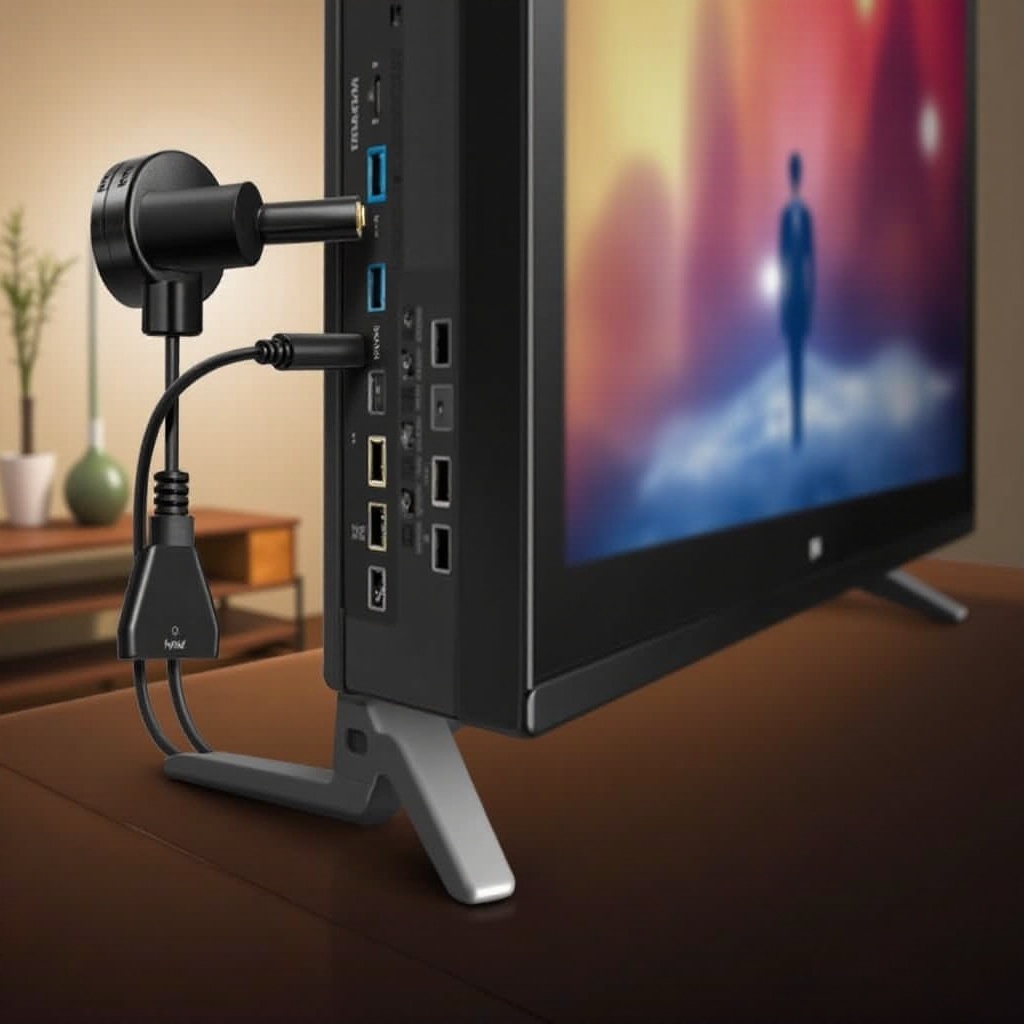
Setting Up Streaming Devices: Similarly, insert the HDMI from your streaming device into a free port, ensuring it’s securely connected.
-
Integrating Sound Systems: Use HDMI to connect speakers or soundbars, enhancing the audio experience while minimizing cable clutter.
This seamless integration of devices means you can enjoy a richer and more immersive viewing experience.
Troubleshooting Common HDMI Issues
Even after connecting your devices, some issues might arise. Here’s how to tackle them:
-
Addressing Unrecognized HDMI Ports: Ensure cables are undamaged and firmly plugged in. Restart devices and check for firmware updates on your TV.
-
Resolving Video or Audio Delays: Use high-speed cables to support desired resolutions and refresh rates, and adjust TV settings to disable unnecessary processing features.
These solutions are designed to quickly resolve most HDMI-related issues, ensuring smooth and uninterrupted entertainment.
Tips for Optimal HDMI Use and Enhanced Viewing Experience
To maximize your HDMI connections and improve your viewing experience, consider these tips:
-
Selecting Quality HDMI Cables: Opt for certified high-speed HDMI cables that support the highest quality video and sound.
-
Adjusting TV Settings for Picture and Audio: Activate settings like HDMI Ultra HD Deep Color to optimize your TV’s performance with capable devices.
By following these recommendations, you effectively leverage the full potential of your LG TV and any connected devices, thus creating a truly immersive entertainment environment.
Conclusion
Knowing the location and function of HDMI ports on your LG TV dramatically enhances your home entertainment experience. From locating the ports to connecting and optimizing various devices, this guide covers every aspect you need to achieve high-quality audiovisual results. Embrace your TV’s full capabilities and get ready for unmatched viewing pleasure.
Frequently Asked Questions
How many HDMI ports do most LG TVs have?
Most LG TVs include two to four HDMI ports, depending on the model and series.
Can I expand the number of HDMI ports available on my LG TV?
Yes, using an HDMI switch or splitter can expand the number of ports.
What should I do if my LG TV’s HDMI port is not working?
First, check if the HDMI cable is intact and securely connected. If the issue continues, try updating your TV’s firmware or contacting LG’s customer support.