
How to Fix a Broken iPad Charging Port: A Step-by-Step Guide
Introduction
A malfunctioning iPad charging port can be a major inconvenience. When your device refuses to charge, it can interrupt both leisure activities and critical tasks. Understanding how to identify the problem early and tackling it with the right approach can save you time and money. This guide provides a detailed look at how to recognize, troubleshoot, and even repair a broken charging port on your iPad, so you can return to your regular usage without hassle.
Your iPad’s charging port is essential for keeping your device powered. Being able to discern whether the issue is simple or more complex will guide you in solving it efficiently. We begin by identifying the signs of a broken charging port.
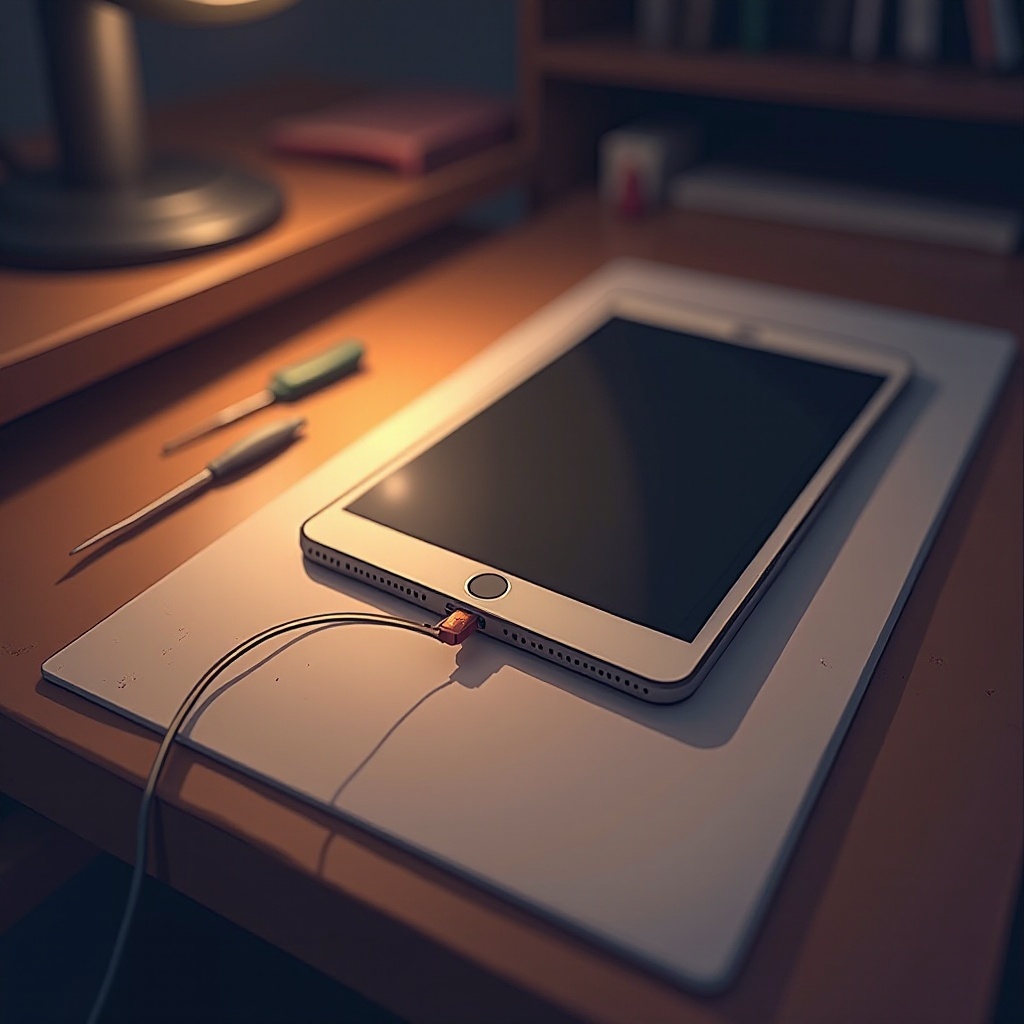
Identifying a Broken iPad Charging Port
Charging issues aren’t always due to a broken port. Recognizing when the port is the problem is crucial. Here are some signs to watch for:
– Common Symptoms: Look for signs such as the battery not charging, intermittent connectivity, or visible damage to the port. Sometimes loose connections or debris blockage may be the issue.
– Hardware vs. Software: Confirm that it’s not a software problem. Issues with settings or pending updates can interfere with charging.
Once you’ve identified potential issues, it’s time to implement some basic troubleshooting steps. These initial solutions can often fix common problems related to connections or dirt.
Initial Troubleshooting Steps
Before resorting to repairs, try these basic troubleshooting actions:
1. Inspecting Accessories: Check your charging cable and adapter for wear and tear. Test them with another device to determine if they’re the cause.
2. Cleaning the Port: Brightly light the port and look for dust or lint. Use a toothpick or compressed air to clear any debris that might block connectivity.
If these steps don’t solve the problem, you can explore more advanced troubleshooting techniques. These methods help determine if you can resolve the issue on your own or if you need professional intervention.
Advanced Troubleshooting Techniques
Some advanced troubleshooting methods can sometimes fix your iPad without requiring part replacement.
1. Software Updates: Ensure your iOS is current. Go to ‘Settings > General > Software Update’ and check for updates.
2. Hard Resetting: If a software update doesn’t help, perform a hard reset by pressing and quickly releasing the volume up button, then the volume down button, and finally, hold the power button until the Apple logo appears.
If advanced techniques don’t resolve the issue, you might consider DIY repair options or professional help, especially in cases of physical damage.

DIY Repair Solutions
Confident users can attempt DIY repairs for a broken charging port. Here’s what you need:
– Required Tools: Obtain a toolkit with essentials like pentalobe screwdrivers and an appropriate replacement port for your iPad model.
– Repair Steps:
1. Back up your data and turn off the device.
2. Remove screws at the base with a pentalobe screwdriver.
3. Carefully pry the screen from the back casing using suction cups or a spudger tool.
4. Unplug the battery and locate the port connection.
5. Follow instructions from a repair manual or video guide to replace the port.
6. Reassemble, ensuring all parts are secure.
DIY repairs carry the risk of voiding warranties. If you feel unsure, consider seeking professional repair services.

When to Seek Professional Help
Knowing when to consult professionals can prevent further damage.
– Complexity and Risks: Consult experts for intricate issues involving components beyond the charging port.
– Finding Repair Services: Seek authorized service providers or reputable repair shops specializing in Apple products.
Understanding preventive maintenance can prolong the life of your iPad’s charging components, helping you avoid future issues.
Preventive Maintenance Tips
Practicing preventive care helps extend the life and functionality of your iPad.
– Keeping it Clean: Regularly inspect and clean the port to prevent dust buildup. Gentle cleaning every few weeks with compressed air maintains a clear connection.
– Charging Practices: Use certified chargers to prevent device damage. Avoid leaving the iPad charging overnight to minimize battery stress.
Implementing these practices can decrease the frequency of charging problems, allowing you to use your iPad with fewer interruptions.
Conclusion
A functioning charging port is vital to maintaining your iPad’s usability and longevity. From performing simple checks to understanding when professional help is necessary, each step ensures your device remains in good working order. Perform routine maintenance and use appropriate tools and methods during any repairs.
Frequently Asked Questions
What should I do if my iPad charges slowly?
Slow charging often results from using an underpowered charger. Always opt for an original or certified charger for the best results.
Can I use a wireless charger if my iPad’s charging port is broken?
Yes, if your model supports it. Check if your iPad has wireless charging capabilities before purchasing a wireless charger.
How do I know if the charging issue is due to the battery instead of the port?
If the iPad doesn’t hold a charge even with a working port, the battery might be the issue. Rapid depletion can indicate battery problems.