How to Pair Your Smartwatch to a New Phone in 2024
Introduction
Pairing a smartwatch with a new phone might seem daunting, but it doesn’t have to be. With the right steps, you can ensure a seamless transition and continue enjoying the features your smartwatch offers. This guide walks you through the entire process of pairing your smartwatch with a new phone, ensuring you maintain all functionality and custom features.
Preparing Your Devices
Before delving into the pairing process, it’s crucial to prepare both your smartwatch and new phone for a successful connection. Proper groundwork ensures a smooth setup.
- Check Compatibility: Ensure the compatibility of your devices. Make sure that your smartwatch is compatible with your new phone’s operating system. Refer to the manufacturer’s website or manual for exact specifications.
- Update Your Software: Keeping your devices updated guarantees optimal performance and compatibility. Check for updates on both your smartwatch and phone. Navigate to ‘Settings’ on your smartwatch and phone to check for and install any available updates.
By confirming compatibility and updating your software, you minimize the potential for issues during the pairing process.
Backing Up Your Data
Your smartwatch likely holds valuable data you won’t want to lose during the transition. Backing up this data is vital and safeguards against data loss during the switch to a new phone.
- Backup on Your Old Phone: Utilize the smartwatch’s companion app on your old phone. Navigate through the app settings to find a backup option, preferably to a cloud service.
- Restoring on Your New Phone: After backing up, restore the saved data on your new phone. Download the smartwatch’s companion app, log into your account, and follow the prompts to retrieve your data.
Backing up ensures all your data, settings, and personalization options remain intact on the new phone, so you can focus on the pairing steps.
Unpairing from the Old Phone
To establish a fresh connection with your new phone, you must first unpair your smartwatch from the old phone. This step is critical for avoiding connection conflicts.
- Unpairing Process: Open the smartwatch’s companion app on your old phone. Within the device settings, select the option to unpair or disconnect. Confirm the action when prompted.
- Resetting Your Smartwatch: After unpairing, reset your smartwatch to prepare it for a new connection. Navigate to settings, choose ‘System’ or ‘Reset Options,’ and select ‘Reset’ to perform a factory reset.
Once you’ve unpaired and reset your smartwatch, it’s ready to connect to your new phone without previous attachments.
Pairing to the New Phone
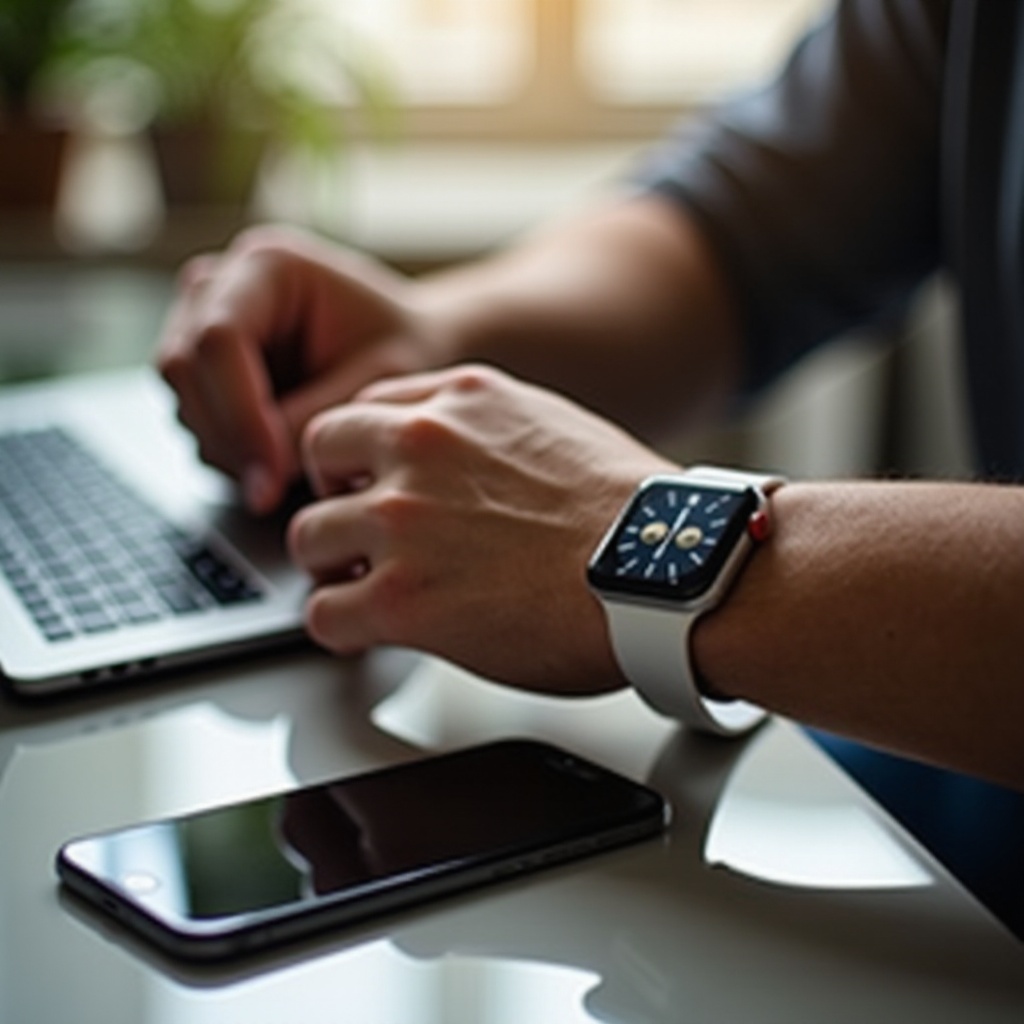
Now that your devices are prepared, you can proceed with the key step: pairing your smartwatch to the new phone. This involves initializing and confirming the connection between them.
- Initial Setup on the New Phone: Check that Bluetooth is enabled on your phone. Install the smartwatch’s companion app and ensure it’s set up for pairing.
- Pairing Steps:
- Open the companion app on your new phone.
- Follow the on-screen instructions to search for available devices. Your smartwatch should appear under the list of available devices.
- Select your smartwatch and accept any pairing requests or confirmations that appear on both devices.
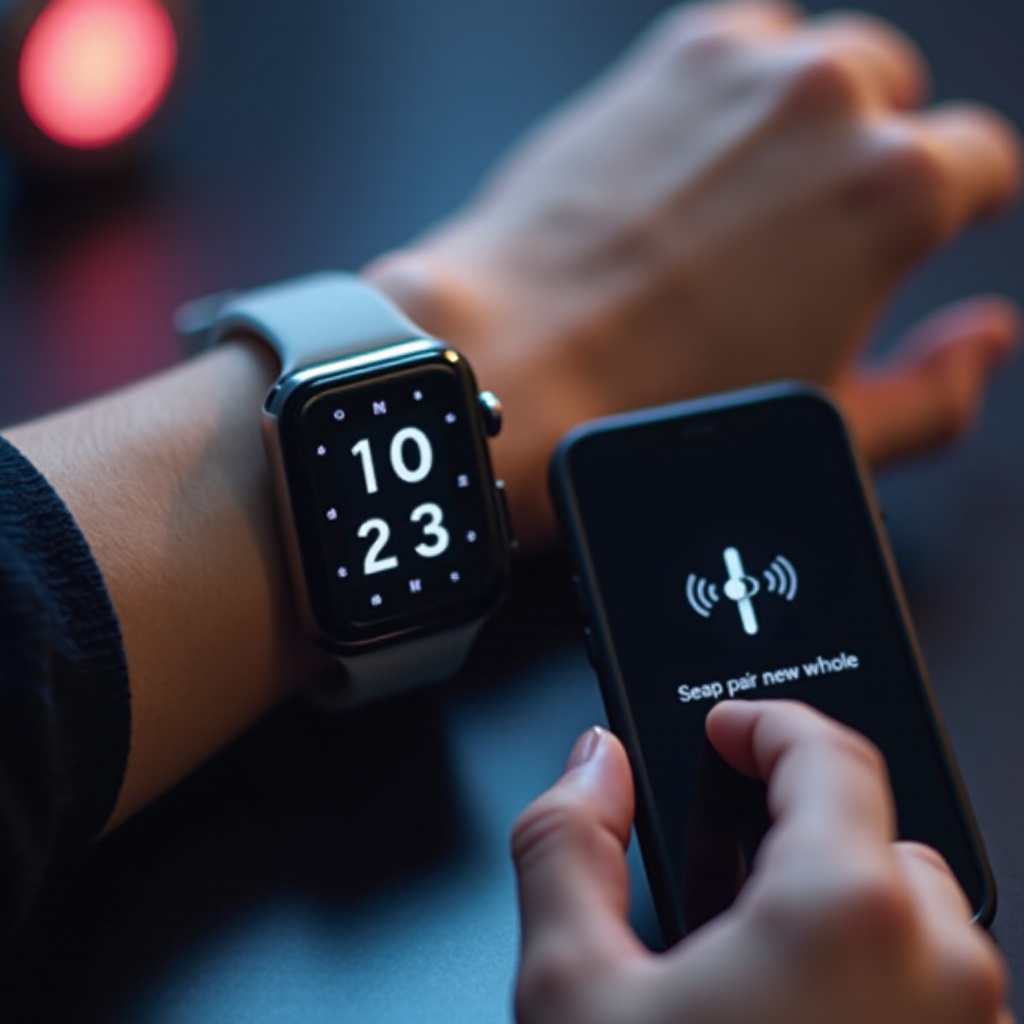
- Check that the time and date on your smartwatch match your phone, indicating a successful pair.
The successful pairing process ensures your devices are synchronized, paving the way for full smart functionality.
Syncing Data and Personalization
With the smartwatch paired, it’s time to sync your data and personalize your experience. This step maximizes usability and allows you to take full advantage of your device’s features.
- Syncing Contacts, Apps, and Other Data: In the companion app, navigate to the data sync settings, enabling synchronization for contacts, calendars, and other necessary data types. Confirm that synchronization is complete on both devices.
- Customizing Your Smartwatch Experience: Adjust your smartwatch to fit your personal style and needs. Customize watch faces, set up notifications to avoid unnecessary alerts, and explore additional settings to optimize user experience.
Personalization options enhance the smartwatch’s functionality, ensuring you have a device tailored to your preferences and lifestyle.
Conclusion
Transitioning your smartwatch to a new phone is straightforward when following organized steps. From preparation and unpairing to pairing and personalization, every step contributes to a smooth setup, allowing your devices to work together seamlessly.
Frequently Asked Questions
How can I troubleshoot if my smartwatch won’t pair?
Ensure Bluetooth is enabled on both devices, reset your smartwatch, and restart your phone. Try again after these steps.
Is it necessary to reset my smartwatch before pairing with a new phone?
Yes, resetting your smartwatch is recommended to remove any previous connections and ensure a fresh start.
Will I lose my app data when switching phones with my smartwatch?
If you perform a backup before switching, you can restore the app data on your new phone without losing any information.