How to Connect Your iPod to Your Computer: A Step-by-Step Guide
Connecting your iPod to your computer is essential for managing and syncing your music library. With the right steps, this process becomes straightforward and rewarding. Whether you are using Windows or macOS, this guide will help you enjoy a seamless music experience.
Understanding Your iPod Model
Before you connect your iPod, make sure you know which model you have. Different models may require distinct methods or software for connection.
-
Identifying Your iPod Generation: Look at the specific details of your iPod, such as the location of buttons and the screen type. Cross-reference these with Apple’s official identifier list to determine your model.
-
Compatibility Considerations: Check if your iPod is compatible with the computer’s operating system. You’ll need specific versions of iTunes or Finder for older models.
Once you’ve identified your iPod, it’s critical to get your computer ready for the connection.
Preparing Your Computer
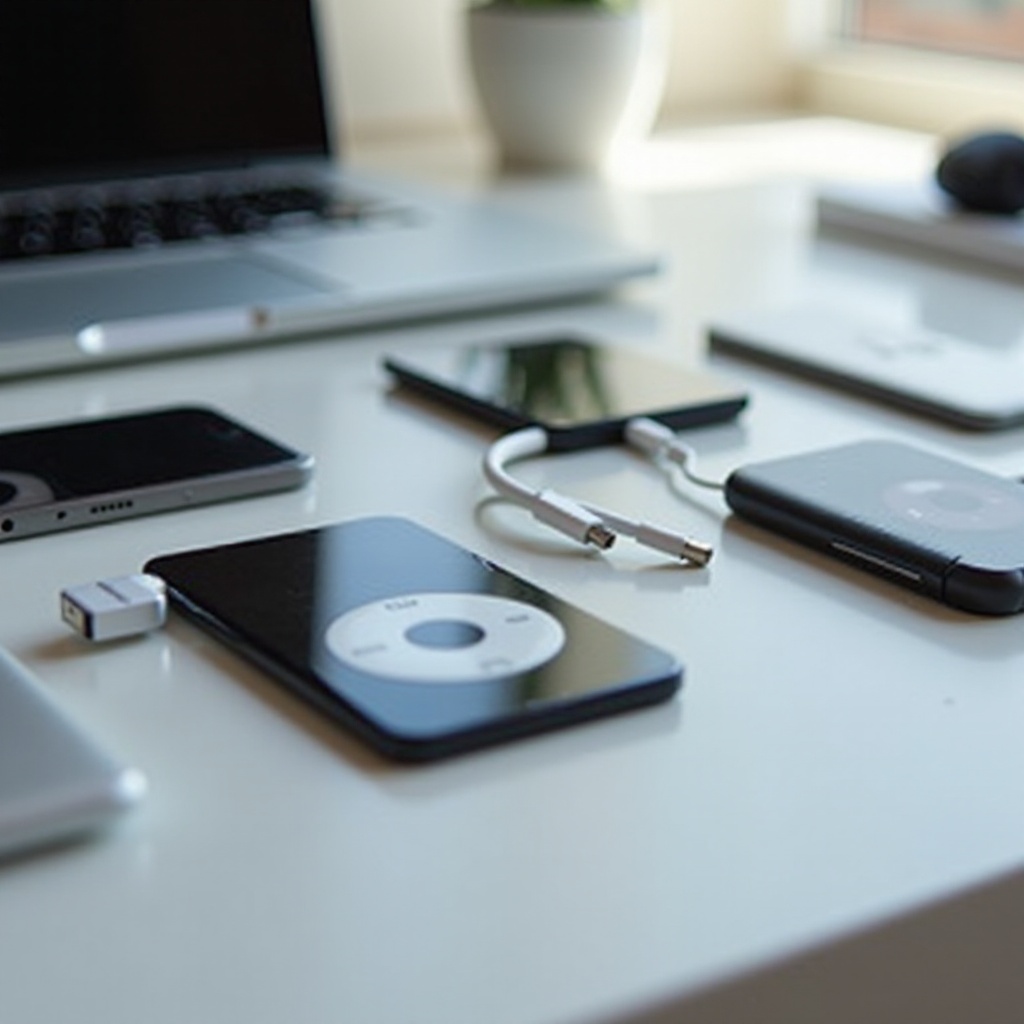
Your computer must be prepared to recognize and sync with your iPod for a successful connection.
-
Installing Necessary Software: If you haven’t already, download and install the latest version of iTunes from Apple’s website. This software is necessary for syncing most iPod models.
-
Updating System Drivers: Ensure your computer’s USB drivers are current. This can usually be done in the settings or system preferences under ‘Device Manager’.
Now that your computer is set up, let’s explore how to connect your iPod to Windows.
Connecting Your iPod to Windows
For Windows users, follow these steps to connect your iPod:
- Step-by-Step USB Connection Guide: Use the USB cable to connect your iPod to your computer. The computer should detect the device automatically.
- Syncing with iTunes: Open iTunes on your computer. Your iPod should appear in the iTunes window under ‘Devices’. From here, you can manage and sync your music library or other media.
Windows generally provides a straightforward interface for connecting iPods, but macOS users have different steps to follow.
Connecting Your iPod to macOS
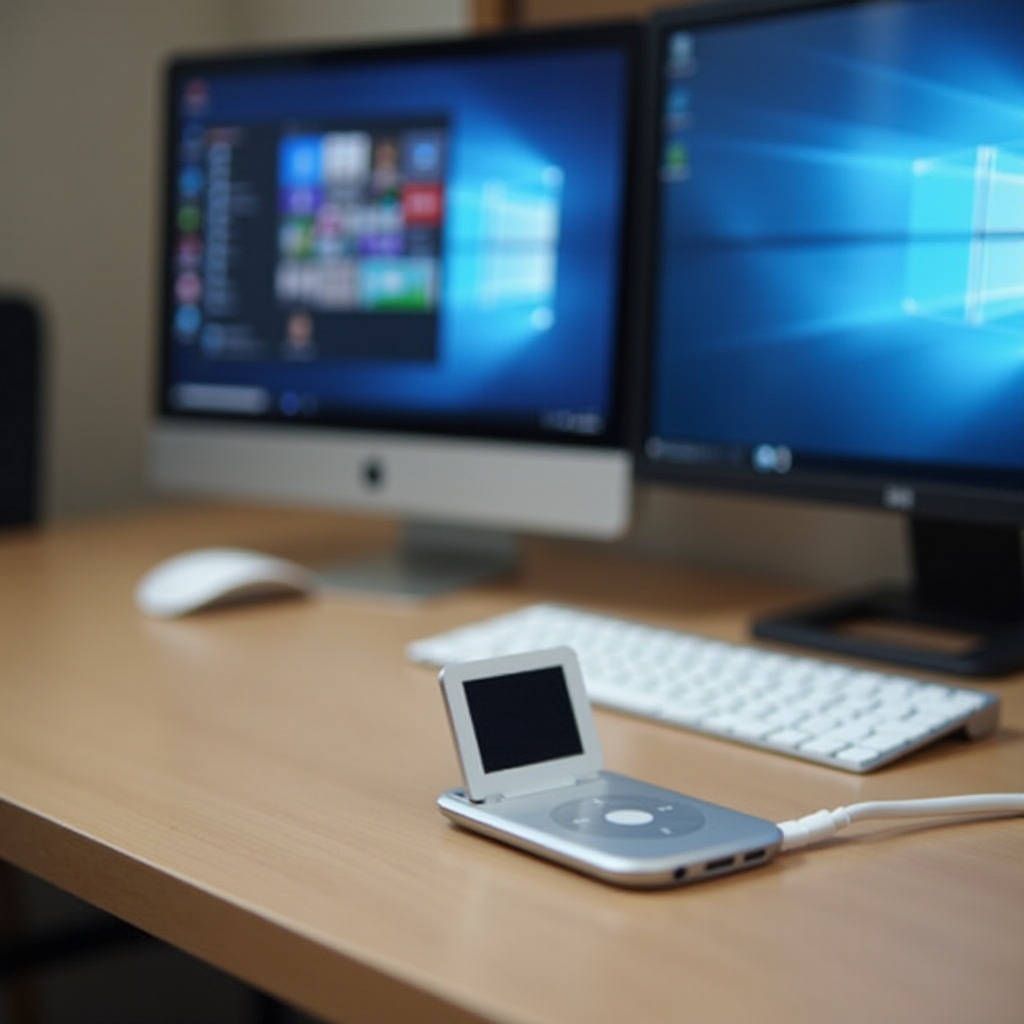
macOS users connect their iPods using these methods:
- Utilizing Finder for Connection: Connect your iPod using a USB cable. On newer macOS versions, your device will appear in the Finder under ‘Locations’.
- Troubleshooting macOS Issues: If the iPod doesn’t appear, verify that both your computer and iPod have the latest updates. Restart your computer and try reconnecting.
If a cable-free setup is more appealing, consider the wireless options available.
Wireless Connection Options
Wireless connections provide flexibility. Here’s how to connect wirelessly:
-
Using Bluetooth for iPod Connectivity: Enable Bluetooth on both your iPod and the computer. Pair the devices by following the on-screen instructions.
-
Syncing with iCloud: Ensure that your iCloud is set up on your iPod. On your computer, log into iCloud to access your music library. This option is great for users who avoid using cables.
Even with these methods, you might encounter issues. Here’s how to troubleshoot common problems.
Troubleshooting Common Issues
Here are solutions for common connection problems:
-
Resolving Connection Errors: If your iPod is not recognized, try switching USB ports or using a different cable. Ensure that your iPod is charged and turned on.
-
Dealing with Sync Problems: Confirm that iTunes or Finder is up-to-date. Restart the software if necessary to resolve syncing issues.
After resolving any issues, enhance your audio experience with these tips.
Enhancing Your Audio Experience
Maximize your iPod’s potential by organizing and managing your music:
-
Organizing Music and Playlists: Use iTunes or Finder to create playlists and sort your music by genre, artist, or mood. This makes finding your favorite tracks convenient.
-
Transferring High-Quality Audio Files: Import songs at higher bit rates within iTunes or Finder settings to ensure optimal sound quality.
With these enhancements, your listening experience will be more enjoyable and personalized.
Conclusion
In summary, connecting your iPod to your computer enhances your music management capabilities. With the right preparation and steps for your operating system, you can enjoy seamless syncing. For added convenience, explore wireless options and use our troubleshooting tips to overcome any obstacles. A well-managed music library makes for an enriched audio experience.
Frequently Asked Questions
Why isn’t my iPod showing up on my computer?
Check your USB connection and make sure both devices are updated. Try using another USB port or a different cable.
Can I connect my iPod to more than one computer?
Yes, you can, but note that syncing with a new library might replace the contents of your iPod.
What if my iPod is not syncing with iTunes?
Ensure iTunes is updated to the latest version. Restart both your iPod and computer to resolve sync issues.